Open Help with the Question Mark
Draft guidance · signed-in interface checks recorded; complete workflow review pending
Summary: Use the main-menu question mark to open the guide, or a panel question mark for help with that panel.
Select the ? labeled Help in the main menu's shortcut row to open the Runcible OS Guide inside the application. It sits with the Log Out, home, My Quick Tasks, and My Schedule shortcuts.
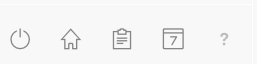
The screenshot shows the main-menu shortcut row. The workspace panels have their own question marks, described below.
Decision tree
Opening the guide does not require a contract, rate, selected task, or enabled AI service. Requirements for performing an action are listed in that action's article.
- What help do you need?
- Browse or search the whole guide → main-menu question mark
- Understand a particular workspace panel → panel question mark and Open help topic
- Ask a question in conversation → bottom-bar spork, when enabled
- Find what must be ready before an action → Dependencies and the action's own linked tree
Open Help from the main menu
- Open the main menu if it is hidden, then select the ? / Help shortcut.
- The guide opens in a panel over the application. Opening it hides the Runcible chat and any open Hand contents.
- Read in this panel, or select Open in new tab in its header for more room.
- Select Close in the header, or click the shaded area outside the Help panel, to return to your work.
You can also open the guide directly in a browser. This is useful when chat is unavailable or you want help beside the application.
Use a workspace panel's question mark
The ? on a workspace panel first shows a short explanation of that panel. Select Open help topic in the explanation to open its full article in the guide. Select the panel's question mark again to hide the short explanation.
This is the quickest route when you know which panel you are using. The main-menu question mark opens the general guide instead.

Help from a record tab
Task and program tabs with Help and prerequisites open the article for that activity. Use the linked dependency section before attempting a change. Close Help to return to the same record and tab.
Find an answer
Use Search the guide for the action or control you need, such as “bottom bar plus,” “spork,” or “timecards.” Open a matching article, then follow its linked dependencies before attempting the steps.
You can also browse the contents tree. Expand a chapter to see its topics and a topic to see its sections. If the contents are hidden, use the guide's contents control to show them.
A Draft label means the article still needs a complete workflow review. An action labeled To be done is not made available merely by adding permissions or setup. See How to Read This Guide for these distinctions.
If Help does not open or search finds nothing
Try opening the guide directly. If a panel's short explanation is empty, the guide can still be browsed directly. If search has a loading error and offers Retry search, use it; otherwise browse the contents.
For an unhelpful search, try the exact label on your screen or the outcome you want. If the instructions still do not resolve the problem, follow Ask for help and include the relevant topic and step in your report.