Dependencies: What Must Be Ready First
Draft guidance · checked against application source; instance walkthrough pending
Summary: Find what you need before a workspace action, dialog, page, or tab can do its job.
Start with the action you want to complete. The linked trees show what must be ready first. Each action's own help article contains its detailed Dependencies section, instructions, and result checks.
How to read the trees
Read from the action outward: indented branches show what must be ready for the item above. All means every listed condition applies; only if marks a conditional branch. Open a linked item for its full requirements and instructions. These trees show prerequisites, not automatic completion of the next action.
Panel trees are different: their branches show how selections affect other views. Task predecessor links describe timing between tasks; use Task Links and Dependencies for those relationships.
Find the dependency for your action
- Workspace panels: context and filtering tree.
- Cells and dialogs: choose the field you are changing.
- Sliding pages and tabs: choose the record and action.
- Staffing and funding: roles, rates, members, contracts, and allocations.
- Permissions and workflow: conditions for acting and completing a transition.
- Scheduling and time: separate booking, work-log, and correction paths.
Example: prepare to assign someone
- Assign a person to a task
- All: task in the intended program and authority to act
- Completed role and membership in that program
Start at any unfinished prerequisite and open its linked article. After completing it, return to the original task and verify the intended person is offered.
The workspace panel illustration
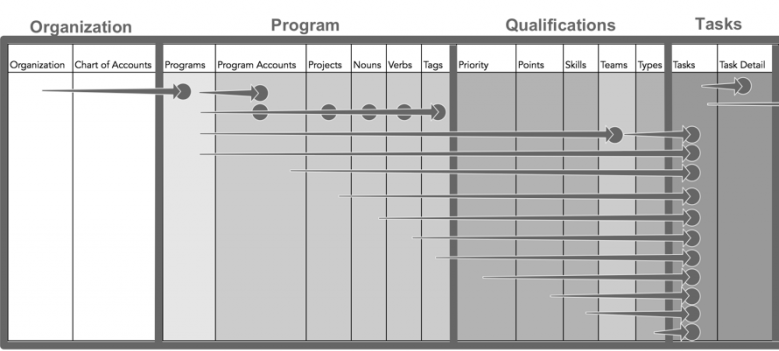
Open the full-size panel illustration.
This illustration comes from the earlier guide. Its arrows explain how panels influence the context shown in other panels. Some names and available panels have changed; for example, the current panel configuration uses Estimate for the older Points label. The current panel guide explains the relationships and important exceptions.
An arrow does not mean that every panel must be open, that a selection grants access, or that choosing a program creates its contracts or rates. Those are separate prerequisites.
Check in this order
- Context: confirm the instance, workspace mode, selected program, and record. Check active filters, including selections in hidden panels.
- Required records: follow the relevant branch to its owning article and complete any missing setup.
- Authority: confirm feature capability, access to the particular record, and any separate decision-making authority.
- State and type: check the action's own Dependencies section for restrictions and conditional requirements.
- Result: return to the original action, refresh if needed, and verify the choices and saved result.
If a menu action is labeled To be done, follow Menu availability. Extra permissions or setup will not make that unfinished menu action available.
More trees in the topic articles
These trees are beside the instructions they support. Dependency trees show conditions that must be satisfied, with conditional branches labeled. Decision trees help choose a path. Review and planning trees organize recommended checks; they do not add system requirements or promise automatic results.
Bottom bar, chat, and Help
- Plus, Dock, and Hands — collect existing tasks, then meet the destination's requirements.
- Ask Runcible — chat availability, context, and conditional features.
- Open Help — choose general, panel, or conversational help.
Getting started and access
- Your First Session
- Configure a New User Account
- Approving a New User Request
- Access and object permissions
- Configure Access Roles and Permission Groups
- Working with Contacts
Programs, planning, and delivery
- Setting Up Programs
- Adding a New Program
- Create a Project
- Planning
- Requirements and Acceptance Criteria
- The Types Panel
- Resourcing
- Using Forecasting
- Assigning People to Tasks
- Program Members and Roles
- Work Roles, Role Sets, and Rates
- The Task Workflow
- Inspect and Publish Workflow Definitions
- Drag and Drop on Panels
Time, communication, and recovery
- Using Appointments
- Record and Correct Work Time
- Timecards
- Responsibility: Your Action Queue
- Email Panel
- Activity Stream Panel (News Feed)
- Oops! Where are My Tasks
- Troubleshooting
- Configure Disciplines, Skills, and Rating Criteria
- Transparency
Money and accounting evidence
- Expenses
- Invoices
- The Books Panel
- Review, Close, and Reopen an Accounting Period
- Import and Reconcile Bank Statements
- Customer Payments, Vendor Bills, and Bill Payments
- Banks, Branches, and Bank Accounts
- Chart of Accounts and Subsidiaries
- Maintain Billing and Invoice Choices
- Find Costs and Cost Allocations